Tables
In ERADIANT you will encounter the same table features in many places – e.g. for contacts, institutions, events, networking time slots or mailings.
The interaction pattern is the same everywhere so you can orient yourself quickly.
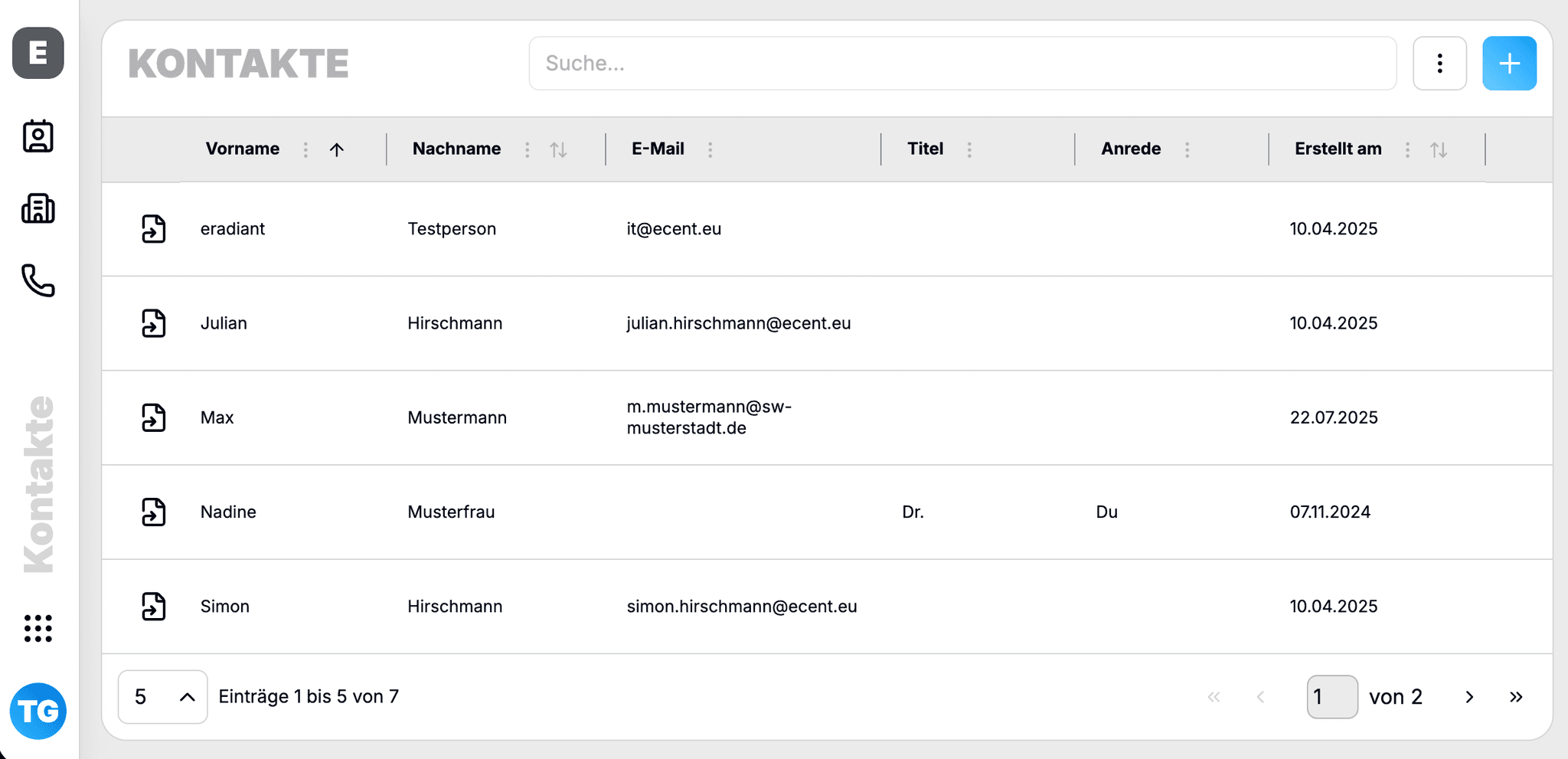
Columns & display
Column width
- Columns automatically adapt to their content and header.
- You can adjust the width via drag & drop on the column edge.
Show and hide columns
- Via the column menu (often “…” or a gear icon in the header) you can choose which columns should be visible.
- Hidden columns remain part of the table but are not shown.
Column order
- You can move columns using drag & drop.
- The order is saved for you (see “Saved views” below).
Sorting
Simple sorting
- Clicking a column header sorts the table by that column.
- Clicking again reverses the sort order (ascending/descending).
- A third click usually resets sorting.
Multi-column sorting (depending on table)
- In some tables you can combine multiple columns (e.g. sort by date first, then by name).
- Active sorting is indicated by a sort icon in the column header.
Search & filters
Search bar
- Above the table there is a search bar.
- You can search for terms there (e.g. name, email, title).
- Which fields are searched depends on the specific table (e.g. event list vs. contacts).
Dynamic filters
- Many tables offer additional filters (e.g. status, categories, tags).
- Filters can be combined – for example you can show only active entries of a certain type.
- Active filters are usually displayed so you always see why you are looking at a particular result set.
Pin columns
What does “pinning” mean?
- Pinned columns stay fixed on the left or right when you scroll horizontally.
- Typical examples: name, title or key identifier columns.
Usage
- Via the column menu you can pin a column to the left or right.
- Pinned columns are visually separated so you can recognize them quickly.
- You can unpin columns at any time.
Pagination
- Below the table you find pagination controls.
- You can:
- navigate to the next / previous page,
- sometimes jump directly to a specific page,
- in some tables set the number of entries per page.
- The page size setting is often stored as a preference for your user account.
Row actions
Depending on the table there are additional actions directly in each row:
- Open details / edit – e.g. by clicking the name or an edit icon.
- Context actions – e.g. delete, duplicate, export, depending on the module.
The exact actions differ by domain (contacts, events, inventory), but the interaction pattern remains consistent.
Saved views
Tables automatically save your last state:
- Column visibility
- Column order
- Pinned columns
- Sorting
- Active filters
When you open the same table again later, your personal view is restored.
This means you do not have to reconfigure frequently used setups (e.g. favorite columns + sorting) every time.